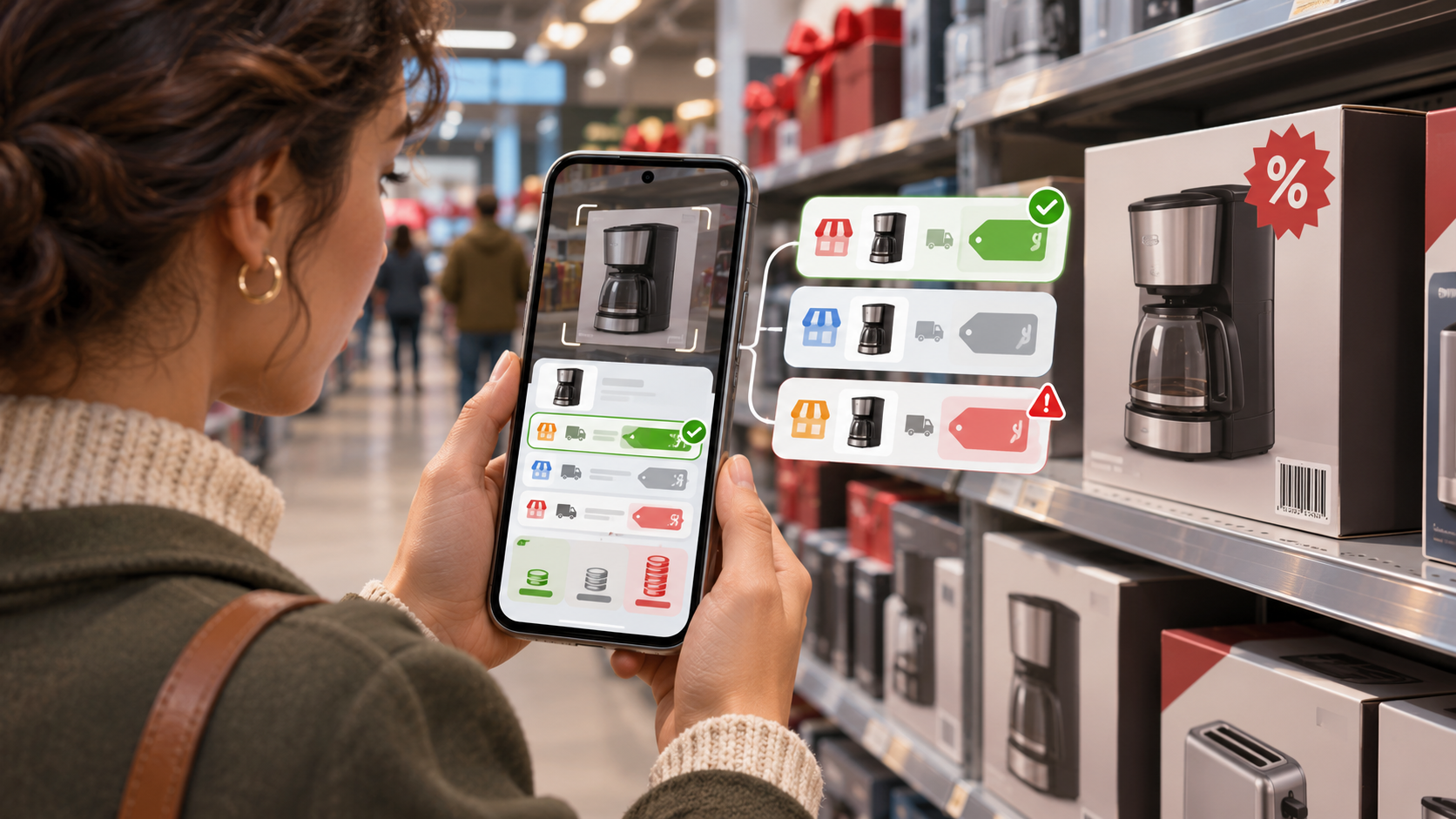
You’re in a shop looking at a coffee maker with a promotional price. You want to find out whether it’s a good deal, but there are several versions of the same product and searching by name takes time.
A tool that may already be on your phone can help: Google Lens.
TL;DR: Black Friday falls on November 27 this year. Google Lens lets you look up products using a photo or barcode and find similar offers. Match the exact model, total cost, seller and price history before buying. Search results do not guarantee a genuine discount or a safe purchase.
01 — The discovery
What changed, who it is for and why it matters.
A search that starts with your camera
On November 18, Google Brazil published its 2026 Black Friday guidance, highlighting Lens as a way to identify products in physical shops and compare online offers.
Visual search attempts to connect an image with information available on the internet. Taking a picture of the packaging or barcode can help identify an item without typing its name. Google’s help centre includes Brazil among the countries where shopping results are available in Lens.
This is particularly useful inside a shop, where you can compare alternatives before deciding whether to buy now or elsewhere. Independent business owners can use the same approach to buying supplies and equipment.
The camera identifies; you compare
A visual result may mix similar versions of an appliance, phone or coffee maker. Confirm the brand, exact model number, voltage where relevant, capacity and included accessories.
Then compare the total amount rather than the advertised discount percentage. An offer may involve expensive shipping, a specific payment method or a third-party seller.
The consumer protection office of the Minas Gerais legislative assembly advises monitoring price changes and payment terms. Lens helps locate present offers; it does not by itself establish whether a price fell during the preceding weeks.
02 — The Solo verdict
Our straight take: is it worth your time?
Use visual search as a starting point, not an automatic purchase decision. The documented Lens workflow requires no separate specialist price-search tool, but you need a compatible phone and an internet connection.
For small business owners, purchase prices also affect margins. Our guide to business costs and operations explains how to keep track of expenses.
03 — The workbench
Hands-on: the step-by-step to put it to work.
How to look up a product on your phone
- Open the official Google app and find the camera-like Lens icon.
- Point the Lens camera at the package or barcode when that option is available.
- Check that the results match the actual item you are considering.
- Alternatively, photograph the packaging and open the image in Google Photos to search with Lens.
- Compare the offers and visit the retailer’s site to verify availability, total price and terms.
The interface varies by device. See Google’s Android help page. On iPhone, Lens is available through the Google app or Google Photos, not directly in the native camera. See Google’s iPhone help page.
A simple calculation before paying
Consider an entirely fictional Brazilian example for the same model, warranty and payment terms:
| Option | Price | Shipping | Total |
|---|
| Physical store | R$299 | R$0 | R$299 |
| Online store | R$269 | R$45 | R$314 |
The online item looks cheaper, but its total is R$15 higher. If the models or terms differ, revise the comparison. These figures are not actual offers.
Before checking out
Consult dated price-history information, verify the seller and payment recipient, read delivery conditions and retain your receipt. Be wary of offers requiring payment through links outside the retailer’s official channels.
When taking pictures, avoid including identity documents, payment cards or bystanders. Google’s help pages explain how to control Lens activity history.
Our reporting consulted public guidance on November 26, but did not test live prices in Taboão da Serra, Brazil. The aim is to provide a method you can use in any shop, not to promise a particular saving.