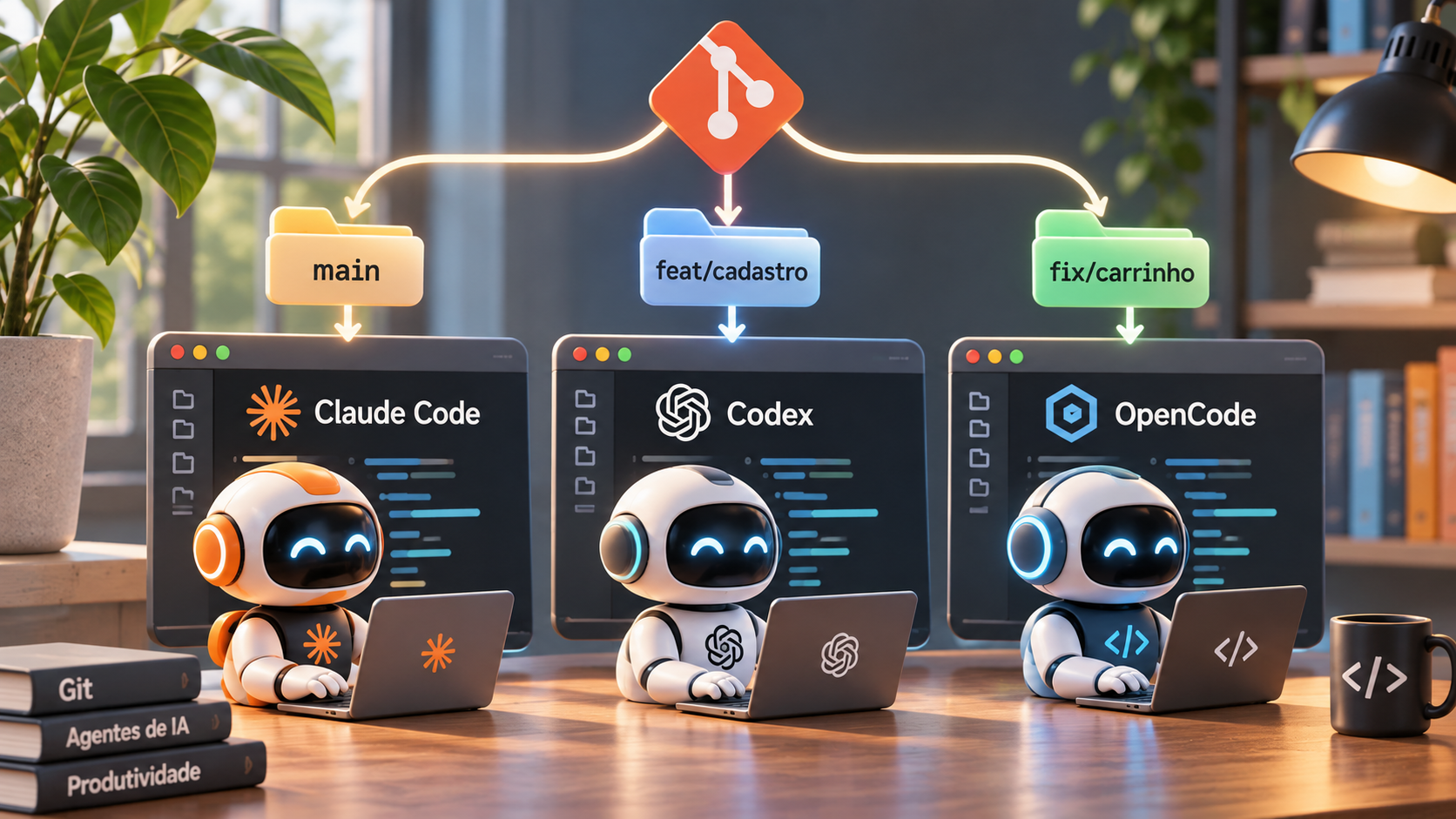
In brief · TL;DR:git worktree lets you open separate working folders linked to the same Git repository, each with its own checkout state. That makes it easier to let one coding agent work on a feature while another handles a bug without sharing one mutable directory. Worktrees do not eliminate merge conflicts, and creating a branch alone does not create a separate working directory.
Advertisement
01 — The discovery
What changed, who it is for and why it matters.
Imagine asking one agent to improve registration while another fixes your shopping cart. Both enter the same project folder, edit nearby files and run tools that rewrite source code. Soon you cannot tell which modifications belong to which task.
Git Worktree addresses one concrete part of this problem: separating physical working directories.
A Git repository stores your project’s history. A branch names a line of development. A worktree is a directory containing the checked-out files. The git worktree command lets you attach additional working directories to one repository without making another full clone.
This distinction is essential: creating a branch does not automatically create a second folder. Switching branches in the same folder can disrupt an agent that is editing files there. With worktrees, each agent can operate in its own checkout and index while sharing the repository’s underlying objects and history.
A mental picture
my-site/                    → main
my-site-signup/             → feat/signup
my-site-cart/               → fix/cart
                   \________ same Git repository
Each folder can have its own VS Code window and Claude Code, Codex or OpenCode session. The signup agent does not overwrite the cart agent’s working files in its other directory.
However, Git Worktree is not a multi-agent coordinator. If both agents modify the same logical part of the application, a conflict can still surface during a merge or rebase. Worktrees reduce interference during execution; integration still needs review.
Why AI makes the difference clearer
A coding agent may search a large project, install dependencies and edit several files in a long-running session. Two agents sharing one checkout can accidentally affect each other’s tests and temporary changes.
Assigning one directory, one branch and one goal to each session improves traceability. That does not prove a twofold productivity gain, and it does not isolate everything:
Branch use: Git normally blocks checking out the same branch in multiple worktrees. Use a task-specific branch.
Ignored files:node_modules, .env and other untracked setup may differ between directories. Never copy secrets by default.
Processes and infrastructure: parallel development servers may fight over a port, database or shared account. Worktrees do not isolate external systems.
Cleanup: use git worktree remove for an active checkout once you have preserved its work. If a folder was deleted manually, git worktree prune can clear stale administrative records. Official Git reference.
02 — The Solo verdict
Our straight take: is it worth your time?
Git Worktree is worth learning when you use more than one agent, need a hotfix alongside feature work or want to leave one pull request under review without sacrificing your main working directory.
It is optional for a single task and one session at a time. Learn git status, branches, commits and diffs first. Worktrees solve local workspace mixing, not every collaboration conflict.
Advertisement
03 — The workbench: two folders, one practice repository
Goal: create a brand-new local Git repository, commit a sample file and attach a second working directory on the experiment branch. Nothing is pushed to GitHub and no existing project is modified.
Requirements:Git, Bash/Zsh on macOS/Linux and permission to create two new directories. Ensure ~/ai-worktree-lab and ~/ai-worktree-experiment are unused names; do not overwrite existing project folders.
Expected result:git worktree list shows two directories, one on main and another on experiment. The sample email only labels this local commit. If Git refuses to create a directory or branch, inspect the state rather than adding --force.
Change into ../ai-worktree-experiment and run git status; then return to ~/ai-worktree-lab and run it again. You share repository history, but the two working copies track different branches and local changes.
Safe cleanup: return to the original lab and inspect the second worktree with git -C ../ai-worktree-experiment status. Once you have preserved anything important and it is clean, run:
git worktree remove ../ai-worktree-experiment
git worktree list
Normal removal protects a worktree containing relevant local changes. Removing a clean worktree does not remove the branch or the commit history. Avoid --force when you do not understand the implications.
On Windows, the same Git commands work in PowerShell with appropriate directory paths. You can create the example README using Set-Content README.md '# Worktree lab'.
Try with agents: assign each agent only its own worktree path and one bounded task. Review git status and git diff separately before integrating any changes.
Next: worktrees isolate where agents work; MCP explains which other systems they can access.